iPhone Air at a glance
- eSIM
- Yes
- SIM tray
- None, eSIM only
- Active lines
- Two eSIMs
- 5G
- Yes
- Bought in mainland China
- eSIM supported
- Newest iOS
- iOS 27
Install an eSIM on the iPhone Air
- Get ready
Update iOS, join a Wi-Fi network and keep the QR code or install link from your provider at hand.
- Open the eSIM menu
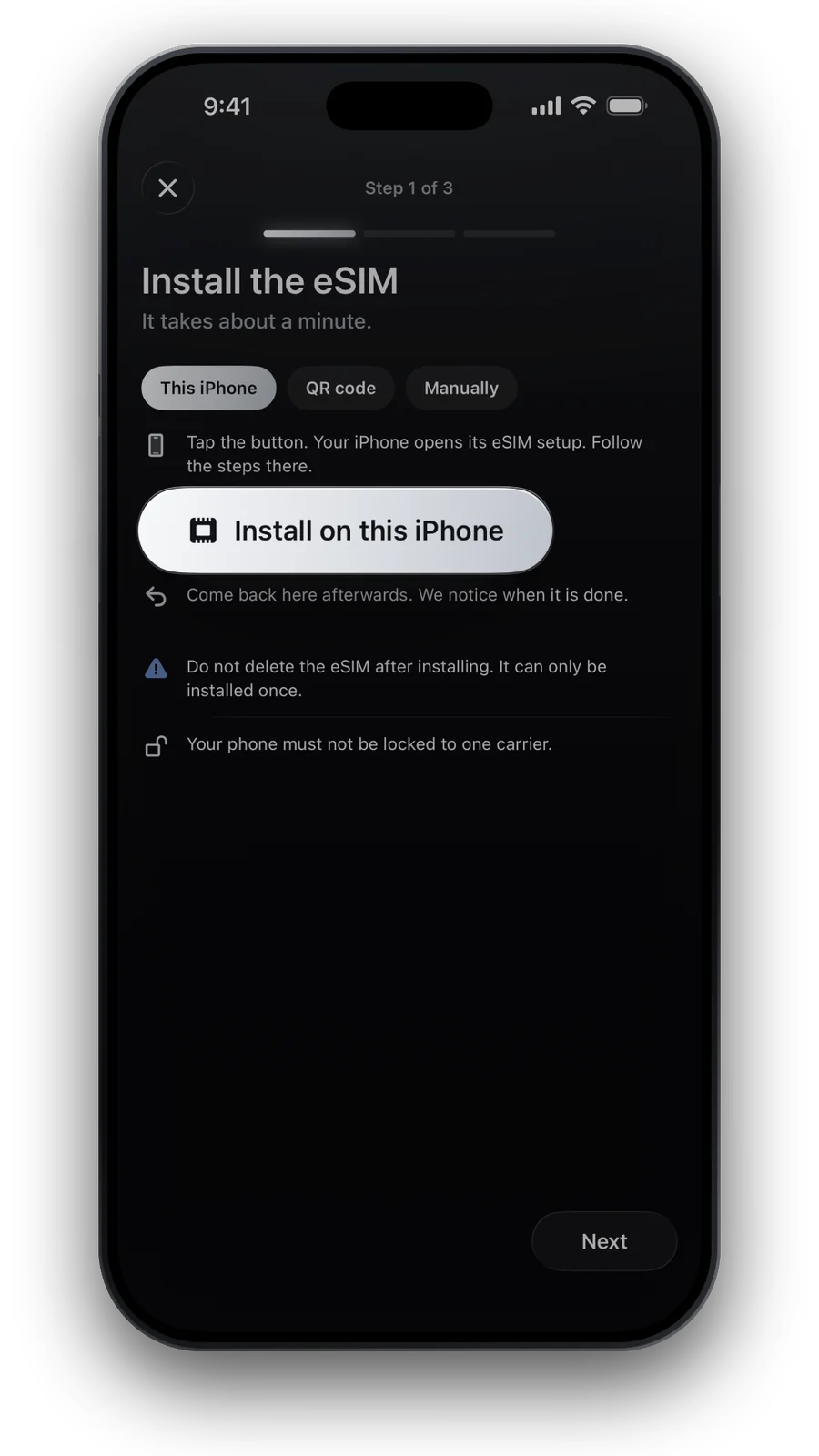
Go to Settings → Cellular (Mobile Service in some regions) → Add eSIM.
- Install the plan
Scan the QR code, or touch and hold a code in an email and tap Add eSIM. Enter the confirmation code if asked.
- Name the line
Label the new line Travel and choose it for mobile data. Your home number stays on the other line.
Full walkthrough with screens: install an eSIM on iPhone.
Check the carrier lock first
- Open Settings → General → About.
- Find Carrier Lock. “No SIM restrictions” means the iPhone Air is unlocked.
- Anything else: ask your carrier to unlock it. Only the carrier can.
- Step by step: is my phone unlocked?
Use the iPhone Air abroad
Install at home, then turn on data roaming for the travel line when you land: data roaming on iPhone.
Questions and answers
Does the iPhone Air work with eSIM in mainland China?
Yes. The iPhone Air is one of the iPhones Apple lists with eSIM in mainland China.
Can I install a travel eSIM from a link on the iPhone Air?
Yes. The iPhone Air runs up to iOS 27, and from iOS 17.4 you can touch and hold a QR code and tap Add eSIM.
Updated 24 Oct 2026 · checked against our live catalogue
How we check our data · Prices and plans come live from our catalogue; facts come from official sources, listed where we use them.
Sources (7)
- Apple Support: iPhone Air tech specs
- Apple Support: Learn which type SIM your iPhone or iPad uses
- Apple Support: Identify your iPhone model
- Apple Support: Using Dual SIM with an eSIM
- Apple Support: Set up eSIM on iPhone
- Apple Support: How to unlock your iPhone for use with a different carrier
- Apple Support: iPhone models compatible with iOS 27