
Check the basics first
Give the eSIM a few minutes on a stable Wi‑Fi connection before you change anything. Many installs finish on their own.
- Wi‑Fi: the iPhone needs an internet connection while the eSIM is set up.
- iOS: update to the latest version your iPhone supports.
- Place: a travel eSIM can only connect where its networks are. If you installed it at home, it joins a network once you are in the destination country.
- Line: the eSIM must be switched on under Settings → Cellular (Mobile Service).
Eight steps, in this order
- Check the basics
Wi‑Fi on, latest iOS, and a network of the destination in range. Swipe down from the top right corner to open Control Center and look at the status bar.
- Turn airplane mode on, then off
Wait a moment between the two. Check the status bar again.
- Turn the line off and on
Settings → Cellular (Mobile Service), tap the eSIM line, switch it off, then on.
- Restart the iPhone
A plain restart clears many pending states.
- Check carrier settings and iOS
Settings → General → About: if an update for the carrier settings is offered, install it. Then check Settings → General → Software Update.
- Check roaming and the data line
Settings → Cellular → eSIM line → Data Roaming on, and choose the eSIM for Cellular Data. See data roaming on iPhone.
- Check the plan in the app
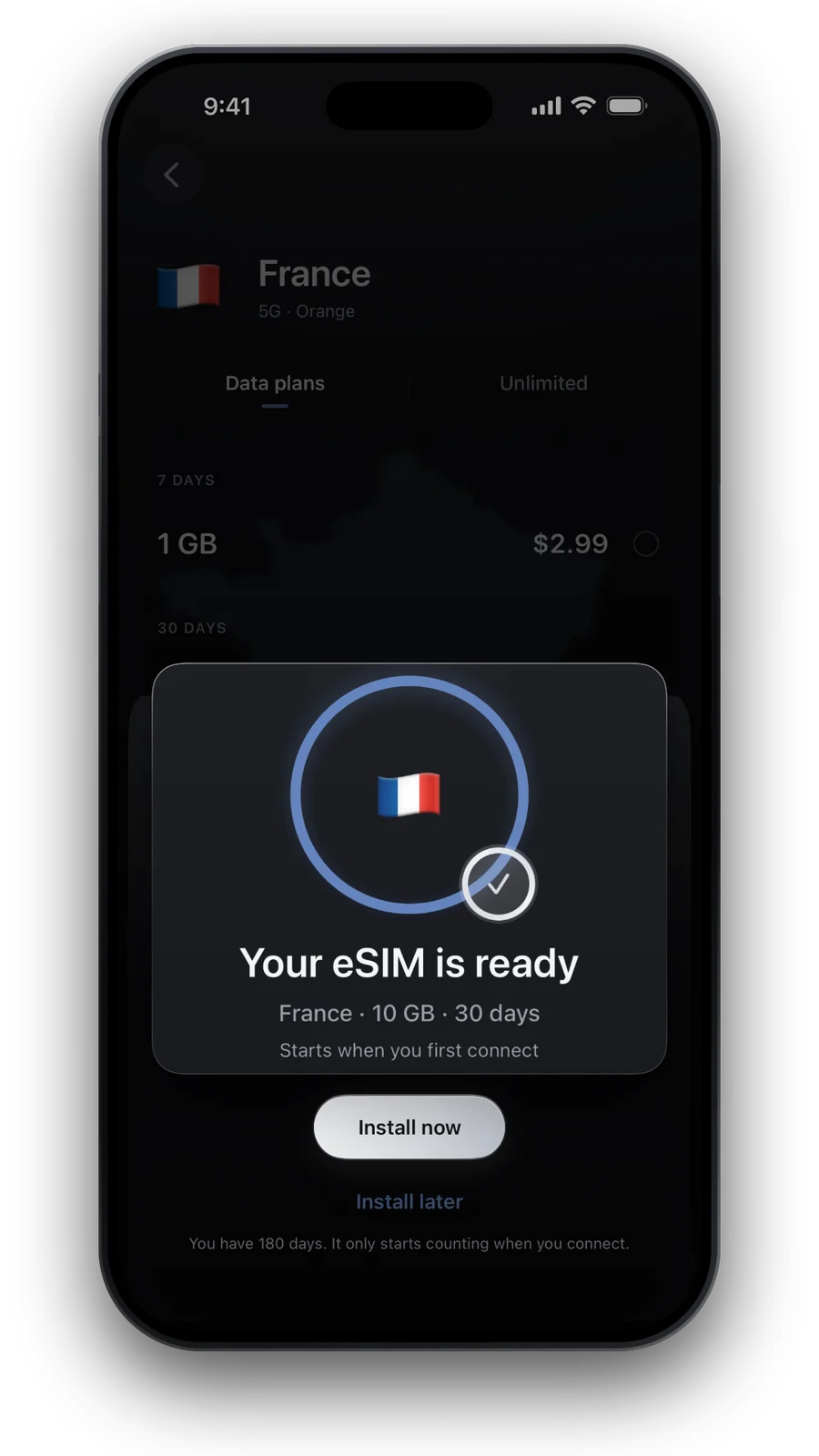
Has it started, and is there data left? Some plans count their days only from the first connection: see when a travel eSIM starts.
- Contact us
Open Help and send a screenshot of Settings → Cellular. We will check the plan with you.
Do not remove the eSIM to try again. Our eSIM installs once, and a deleted one cannot be put back from the same code.
Still not connecting abroad?
If the line shows a network but there is no internet, or you see no service after you land, follow eSIM not working abroad. It covers APN, manual network selection and the usual settings mix-ups.
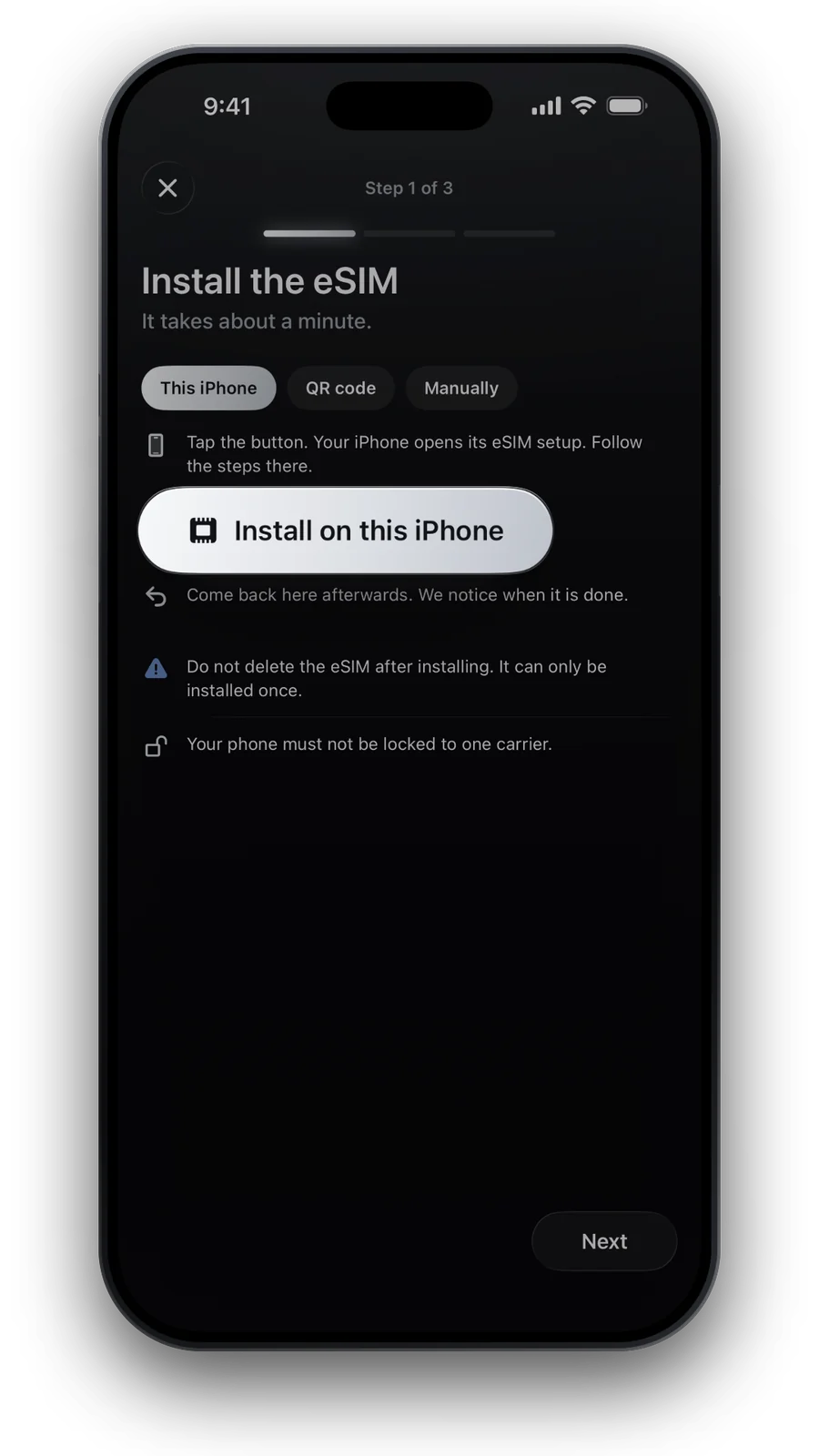
Setting it up the first time? Install an eSIM on iPhone walks through the install, and Dual SIM on iPhone shows how to keep your own number.
Questions and answers
How long should I wait before trying the steps?
Give it a few minutes on a stable Wi‑Fi connection. If the status does not change, start at step two.
Is my eSIM broken if the line stays pending?
Rarely. Most cases are a connection, a setting or being outside the area of the plan's networks. Check the steps before you worry.
Can I delete the eSIM and install it again?
No. Our eSIM installs once, so deleting it can leave you without a plan. Use the steps above, or contact us from Help.
Why does it not connect while I am still at home?
A travel eSIM uses the networks of the destination. At home there is usually nothing for it to join, so it connects once you arrive. Install early, then switch it on when you land.
Does the same apply to a carrier eSIM?
The steps are the same. For a carrier eSIM, your carrier is the one to ask if they do not help.
Updated 24 Oct 2026 · checked against our live catalogue
How we check our data · Prices and plans come live from our catalogue; facts come from official sources, listed where we use them.