
First three checks: roaming, data line, airplane mode
- Data roaming on, for the eSIM
A travel eSIM works as a roaming line, so this switch must be on. On iPhone: Settings → Mobile Service (or Cellular) → tap the travel eSIM → Data Roaming. On Android: the SIM or mobile network settings of the eSIM → Roaming.
- The eSIM is your mobile data line
iPhone: Settings → Mobile Service → Mobile Data → choose the travel eSIM. Android: SIM manager or SIMs → Mobile data → the eSIM. Is the line itself switched on? Check that too.
- Airplane Mode on, wait, off
This makes the phone search for networks again. If that does not help, restart the phone once.
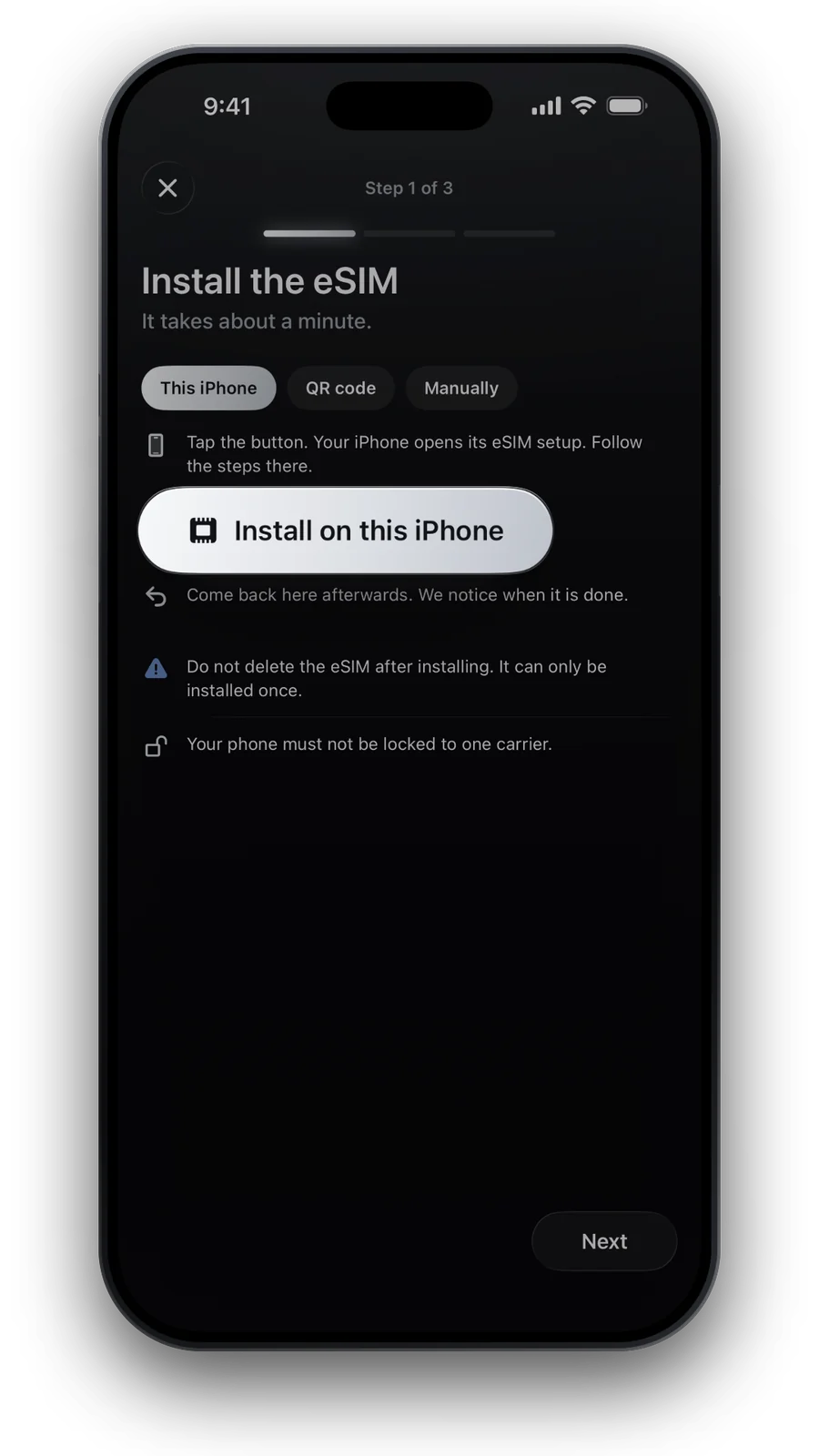
Do not delete or reset the eSIM to “start fresh”. A deleted eSIM cannot be installed again.
Your home SIM can stay on for calls and SMS. Keep its data roaming off, or it may use data at your carrier’s rates instead of the eSIM.
APN: when you need to set it
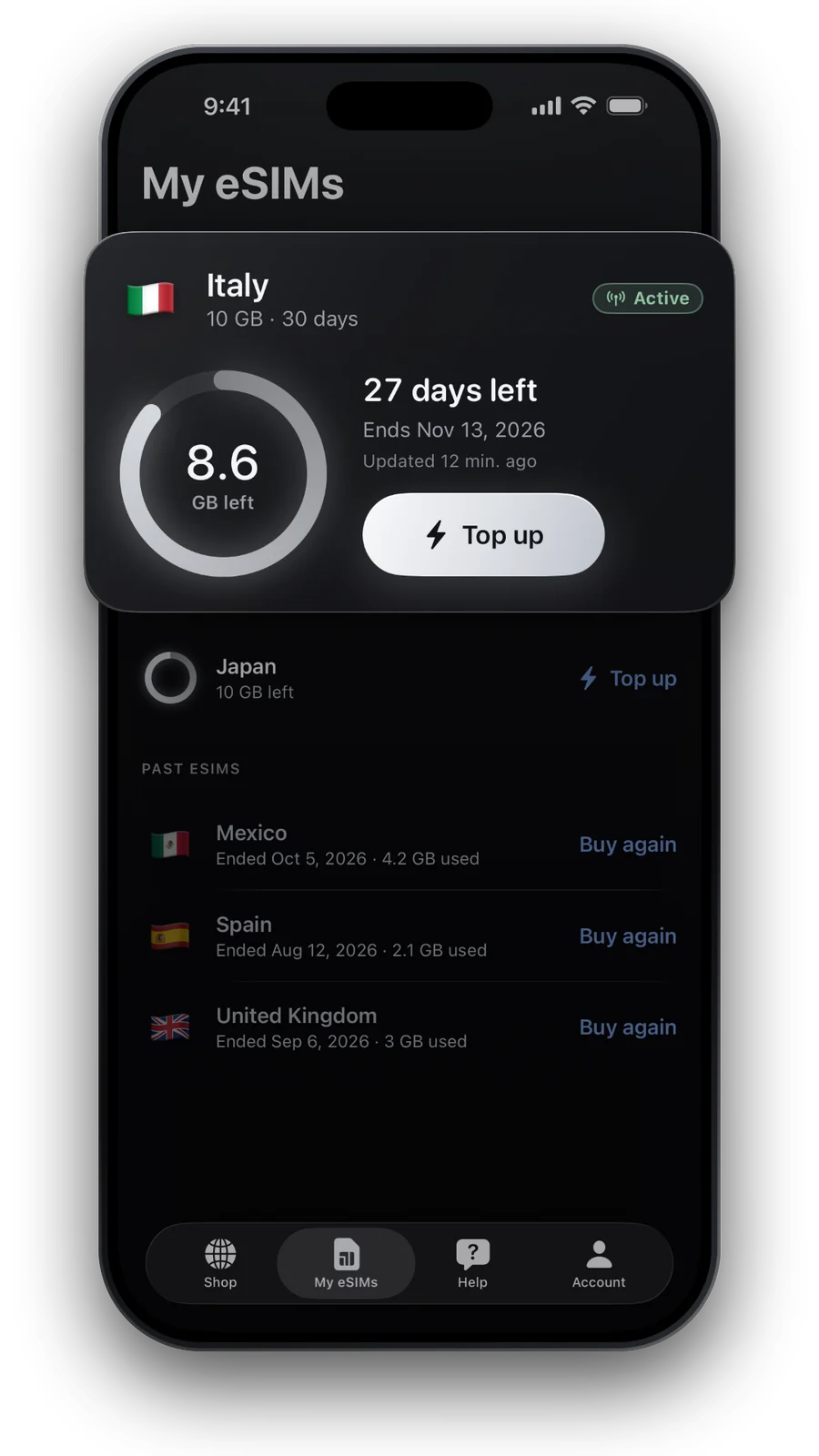
The APN tells the phone how to reach the internet through a network. Most plans set it automatically. If you have signal bars but pages do not load, and My eSIMs shows an APN for your eSIM, enter it by hand.
| Where to enter the APN | |
|---|---|
| iPhone | Settings → Mobile Service → the travel eSIM → Mobile Data Network |
| Samsung Galaxy | Connections → Mobile networks → Access Point Names, for the eSIM |
| Google Pixel and others | Network & internet → SIMs → the eSIM → Access Point Names |
Type the APN exactly as shown, then turn Airplane Mode on and off.
Choose a network manually
Sometimes the phone keeps trying a network your plan cannot use. Turn off automatic selection and pick one yourself. For country plans, the destination page in our shop lists the networks the plan uses.
- iPhone: Settings → Mobile Service → the travel eSIM → Network Selection → turn off Automatic.
- Android: mobile network settings of the eSIM → Network operators → turn off automatic selection.
- Wait for the list, then choose a listed network.
- Once connected, switch back to automatic before you travel on.
Waiting for the first connection, and when your plan starts
Right after installing at home, the new line usually shows “No service”. That is expected: the eSIM only connects to networks in the destination it was made for. It comes to life after you land, once roaming is on.
- Start at first connectionMost plans start counting days when the eSIM first connects at your destination.
- Start at installationSome plans start when you install them. The plan says which before you pay.
- Wrong country?A country plan works only in that country. Crossed a border? Check that your plan covers where you are now.
More on timing in our guide on when a travel eSIM starts.
Usage not updating? The 1 to 3 hour delay
Data use reaches us from the network with a delay of one to three hours. My eSIMs shows the time of the last update next to the figure. If the number has not moved after a busy morning, that is the delay, not a fault.
- Plan ahead: top up a little before you think you will run out.
- Data finished? On plans that allow it, tap Top up under My eSIMs. No reinstall.
- Day plans: after the daily full-speed amount, the plan slows down or pauses until the next day, as it says on the plan.
Still stuck: get help
Tried all of the above? Write to us in Help. We read every message and answer in your language. It helps if you tell us:
- Your phone model and the country you are in
- What the line shows: “No service”, bars without internet, or an error message
- What you have already tried from this list
Not travelling yet and wondering whether your phone can take an eSIM at all? Check the compatible phones list.
Questions and answers
My eSIM shows “No service” at home. Is it broken?
No. A travel eSIM only connects in its destination. At home, “No service” is normal.
I have bars but no internet. What now?
Check data roaming and the mobile data line, then enter the APN if My eSIMs shows one.
Should I reinstall the eSIM?
No. An eSIM can be installed only once. Deleting it removes it for good. Write to us instead.
Why is my data balance not up to date?
Usage reaches us one to three hours late. The time of the last update is shown next to it.
Updated 20 Oct 2026 · checked against our live catalogue
How we check our data · Prices and plans come live from our catalogue; facts come from official sources, listed where we use them.